
A simple, fast, native macOS text editor, notebook and file viewer — real syntax highlighting, a Notes mode that autosaves and renders markdown as you write, live Mermaid diagrams, a built-in viewer for PDF, Office, iWork, images, audio, video & HTML, a keyboard-drivable file browser, crash-safe tabs, and a Claude Code channel built right in. No plugins.
A viewer, not just an editor
The things you'd install a dozen VS Code extensions for — previewing a PDF, an image, a spreadsheet, a clip — just work. Browse a folder in the tree and each file renders as you click.
PDF · Word (.docx/.doc/.rtf) · Excel (.xlsx) · Apple iWork (Pages/Numbers/Keynote). PowerPoint & legacy Office render with LibreOffice; anything else opens in its default app.
png, jpg, gif, bmp, tiff, heic, webp, svg, ico — shown on a transparency checkerboard.
mp3, wav, m4a, aac, ogg, flac, aiff and mp4/mov/m4v/webm — native players, right in the tab.
Renders static by default; a page you approve runs its scripts in a sandbox walled off from the app. Preview a mockup or a game you built.
SVG file-type icons, keyboard navigation with live preview, type-to-filter, and ephemeral tabs so browsing never piles up clutter.
Over the MCP channel, Claude can open a document into the viewer for you — preview_file. Script-approval stays yours alone.
Notes mode
Switch to Notes and the app becomes a notebook: your notes folder in the sidebar, markdown rendered as you write it, and every keystroke saved about a second after you stop. No save, no dialog, no lost meeting.
Meeting, sprint review, design session, 1:1, decision record, retro, daily log, reading notes, incident — the shape already on the page, dated, with the cursor on the first thing you would type. An empty note fills in place; a note you have written in asks first.
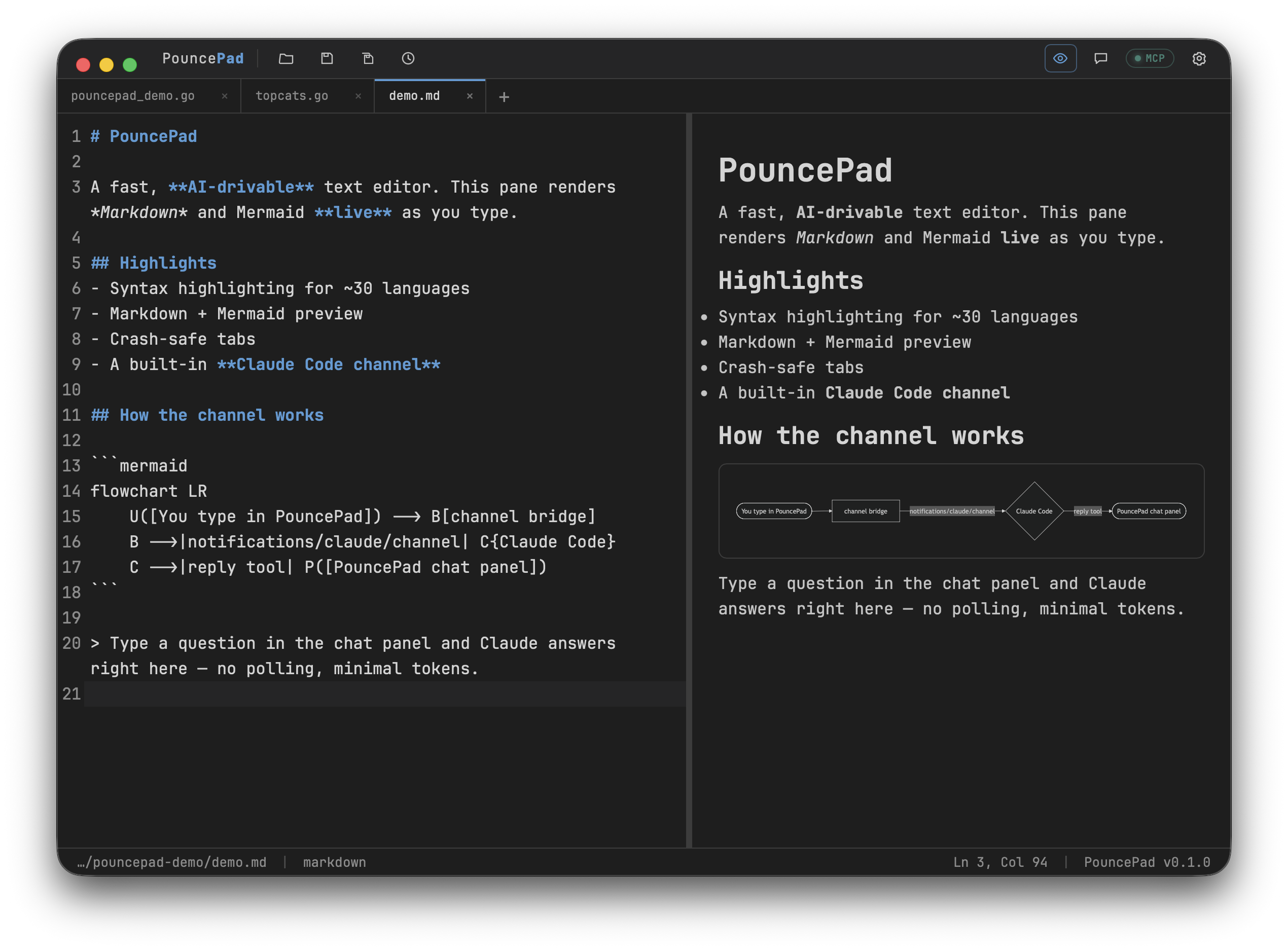
A mermaid block is drawn where it
sits and turns back into text when you put the cursor in it. Ten worked examples to start from —
flowchart, sequence, state, ER, Gantt, timeline and the rest — because nobody remembers the syntax.
Tab moves to the next cell and tidies the whole table on the way. Tab off the end adds a row. Enter twice leaves the table. The columns stop drifting the moment you type into them.
An automatic save never reformats and never trims. Two trailing spaces are a line break in markdown, and tidying them away mid-sentence loses them.
Spelling, grammar and punctuation as a list of discrete changes you accept one at a time — never one silently rewritten document. Add your own rules (“no em dashes”, “British spelling”) and point it at a small, cheap model of your choosing.
Plain markdown in a folder you pick — iCloud, a synced drive, a git repo. Nothing is sent anywhere unless you press the AI button, and the notebook works entirely without one.
Why PouncePad
A scratch editor that opens instantly and never loses your work — with Claude able to read and edit the file you're in.
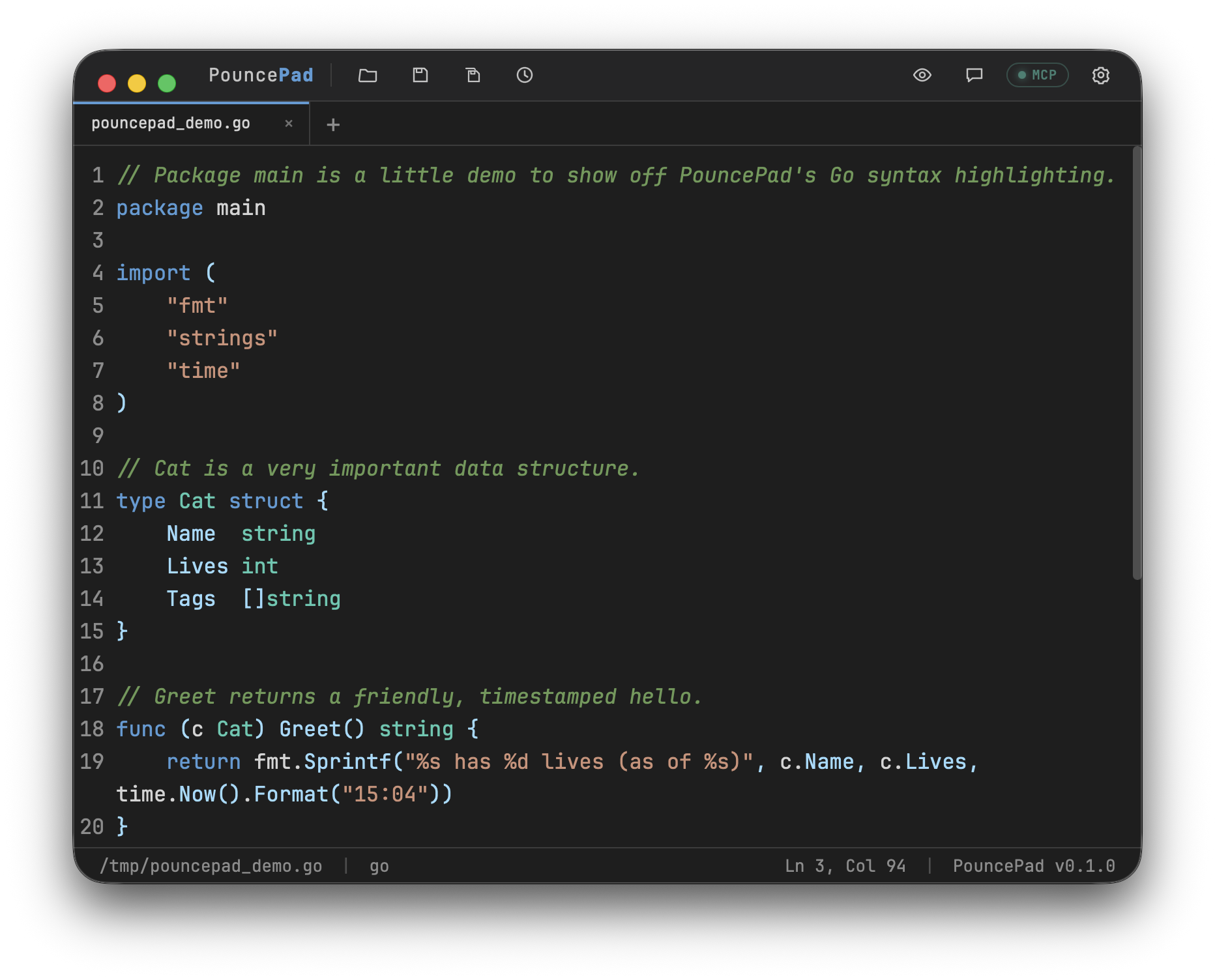
Instant launch as a TextEdit/Notepad replacement, but with real syntax highlighting for ~30 languages, crash-safe tabs (every keystroke saved to disk), and open from the CLI or Finder.
Write notes, docs and diagrams with a live preview — Markdown and Mermaid render as you type, while plain text stays plain.
Click a PDF, Word doc, spreadsheet, image, audio or video file and it just shows — no plugins to hunt for. Browse a whole project from the tree and arrow through files, each previewing as you go.
The built-in Claude channel lets you ask about the open file and have Claude edit it in place — no copy-paste, no leaving the app.
Features
CodeMirror 6 highlighting for Go, Python, JS/TS, Rust, SQL, JSON, YAML, HTML and more — themed to the editor palette.
A live preview pane renders Markdown and Mermaid diagrams as you type; plain text stays plain.
Every keystroke is saved to disk — unsaved scratch buffers come back after a restart. Clearing history never deletes files.
pouncepad file.md from the terminal, or set it as the default editor for .md/.json/.txt/… in Finder’s Open With.
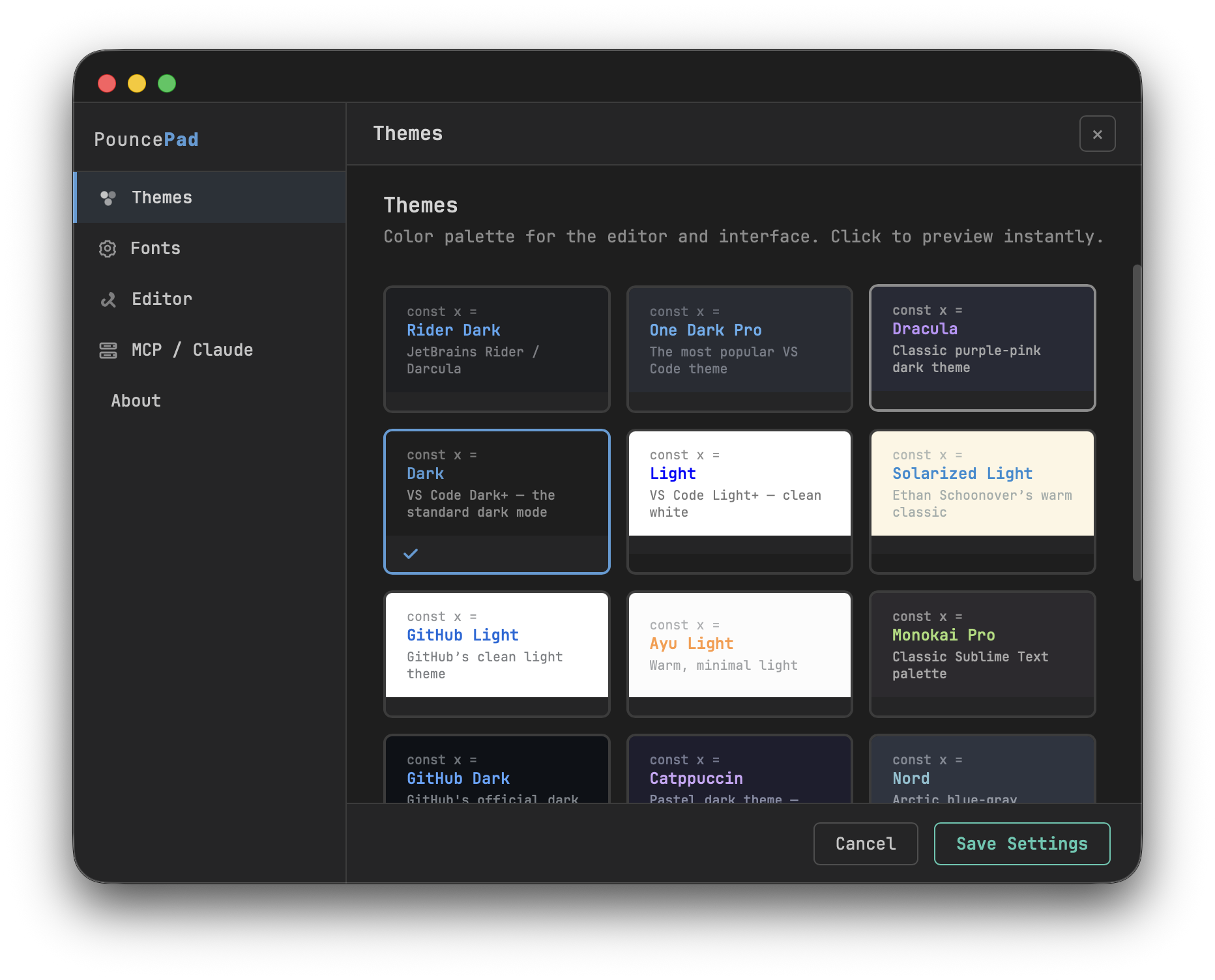
Rider, One Dark, Dracula, Nord, Solarized, GitHub, Monokai, Ayu and more — light and dark.
A built-in MCP channel: type a question and Claude Code answers inside the app — and can edit your files.
PDF, Word, Excel, Apple iWork (Pages/Numbers/Keynote), images, audio and video — plus HTML — render right in the app. PowerPoint too, with LibreOffice. No plugins.
SVG file-type icons, keyboard navigation with live preview, type-to-filter, and ephemeral tabs so browsing never piles up clutter.
Pages render static by default; approve one and its scripts run in a sandbox walled off from the app. Preview an interactive page or a game you built, safely.
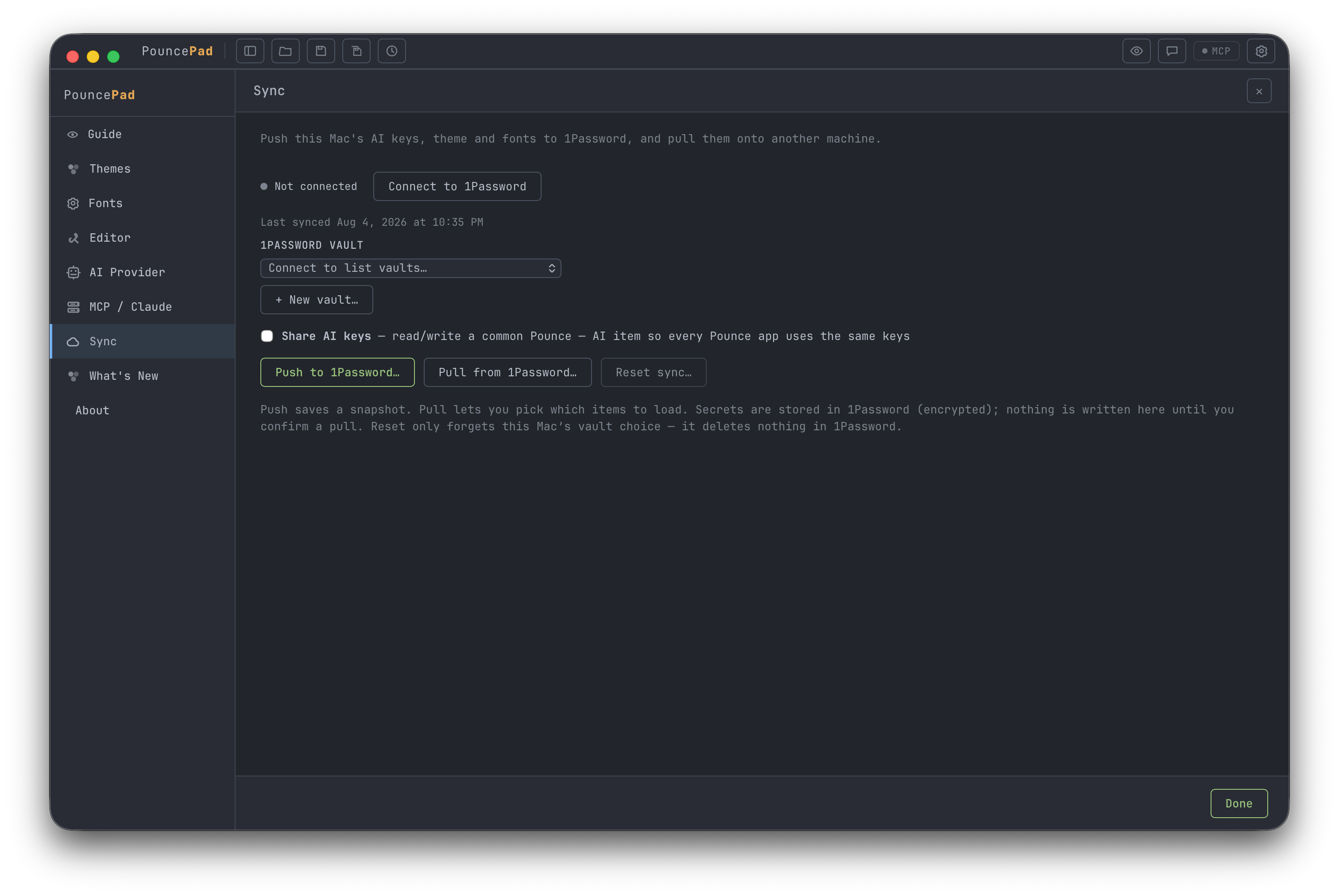
Push this Mac's theme, fonts and AI keys into a 1Password vault, then pull them onto another Mac and pick exactly which items to apply — your editor looks and behaves the same everywhere. Secrets stay encrypted in 1Password; nothing changes locally until you confirm.
A closer look
The Claude channel
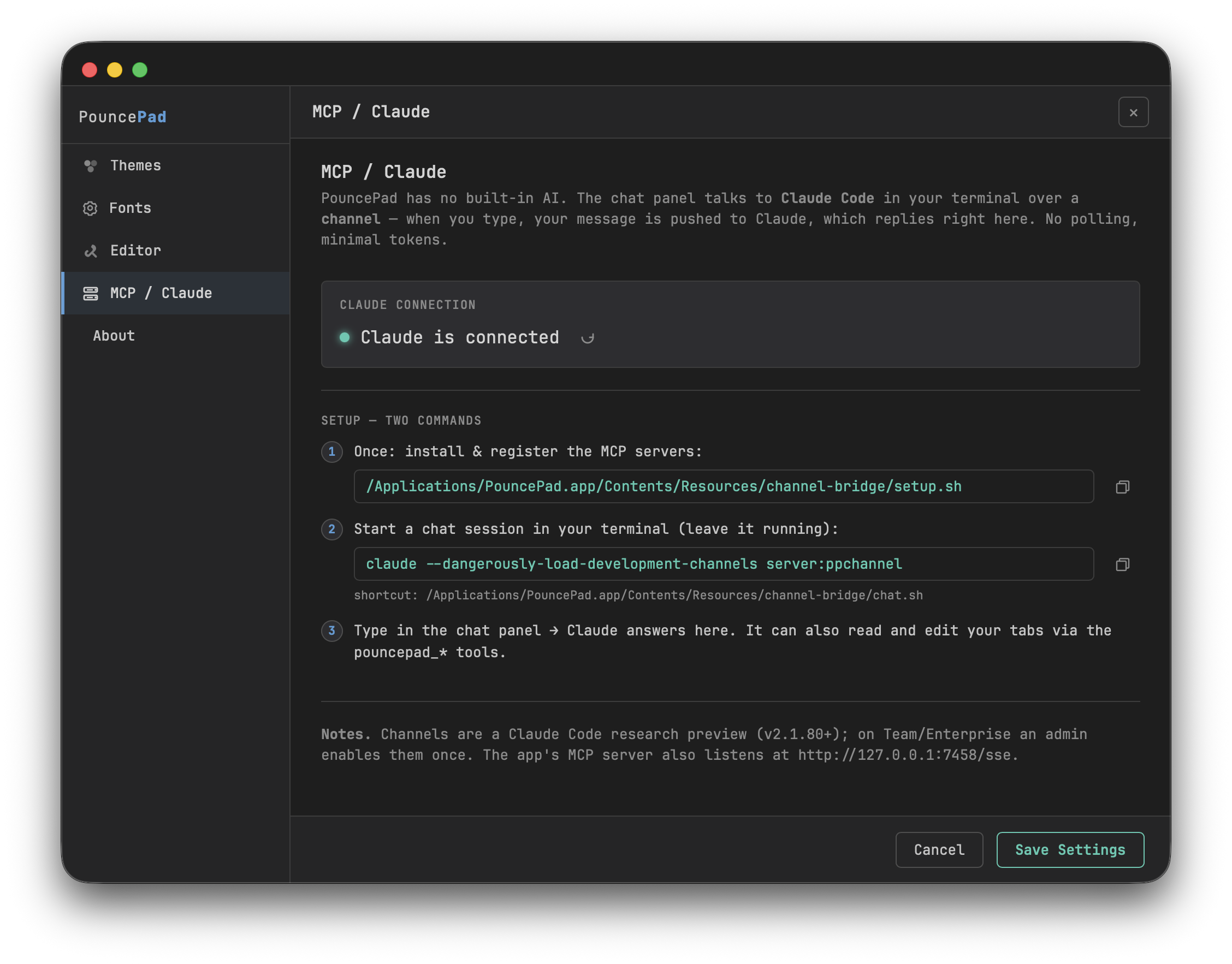
PouncePad has no built-in LLM. Instead it opens a channel to Claude Code running in your terminal: your message is pushed to Claude (no polling), Claude replies in the chat panel, and it can read and rewrite the file you’re working on through the app’s MCP tools.
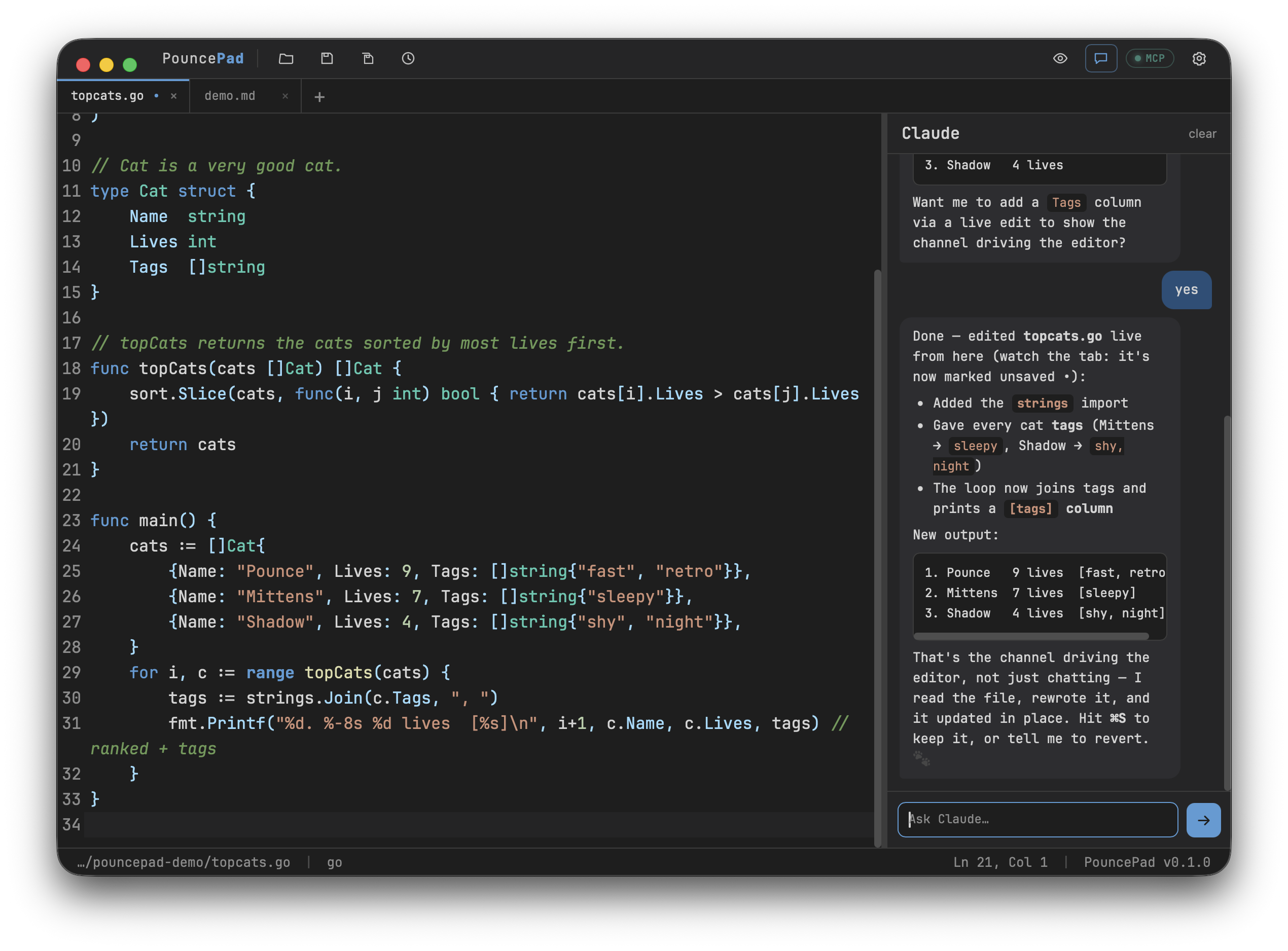
Cat struct, a topCats() sort, and a main that prints a ranked list. Want me to add a tags column?strings import and a [tags] column. That’s the channel driving the editor, not just chatting.Install
macOS 13+ (Apple Silicon).
brew tap pounceapps/tap
brew trust pounceapps/tap
brew install --cask pouncepad
Or download a notarized .dmg from
pounceapps/downloads. To wire up the
Claude channel, see Settings → MCP / Claude in the app, or the
wiki.